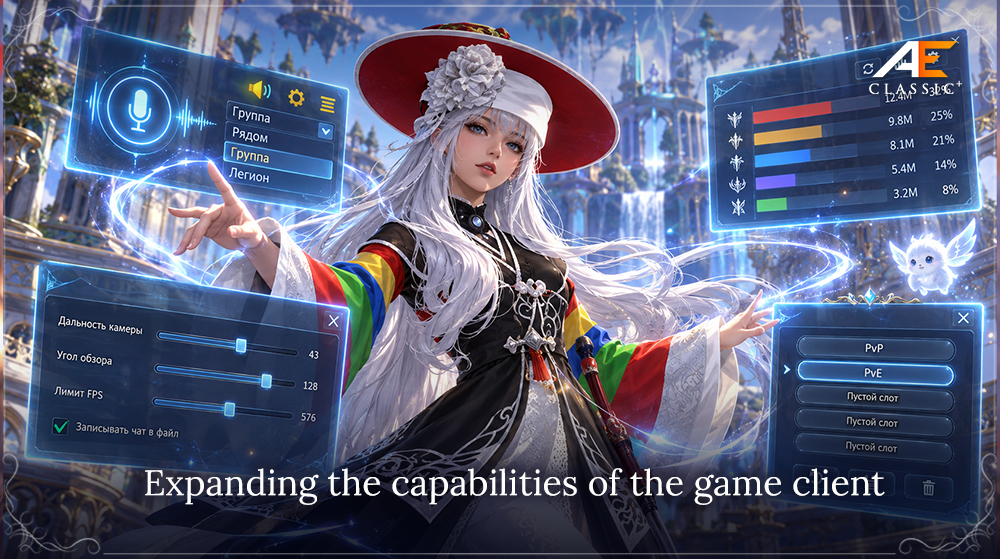
What's New
How to Enable the Beta Version
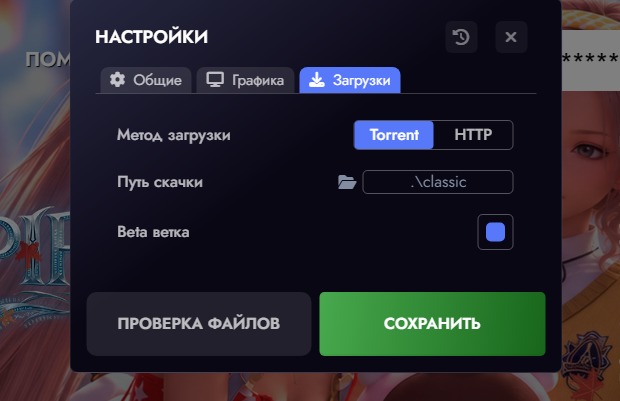
During testing, the new client features are available through a separate Beta branch. To enable it:
Launcher → Settings → Downloads → "Beta Branch" → enable the toggle → Save.
The Beta branch is a test version of the client. You may encounter bugs, individual features not working correctly, reduced performance, freezes, or game crashes. Please make sure to report any issues you encounter to the administration. This will help resolve them faster and contribute to the project's continued development.
If the client starts crashing, freezing, behaving unstably, or experiencing other issues after enabling the Beta branch, first disable the Beta branch in the launcher settings and start the game in normal mode.
Launcher → Settings → Downloads → "Beta Branch" → disable the toggle → Save.
The Beta branch is primarily intended for testing new features before their full release in the main client version.
Built-in Voice Chat
One of the biggest additions is fully integrated voice communication directly within the game. You no longer need Discord, TeamSpeak, or other third-party applications to communicate with other players. All you need is a microphone and an audio output device, such as headphones or speakers. Voice chat is fully integrated into the game client and allows you to communicate through different channels depending on the situation.
Voice Channels
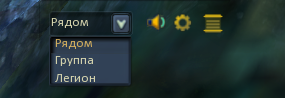
Players can quickly switch between available voice channels.
Nearby
Nearby — positional voice chat with characters around you.
* A particularly interesting mechanic has been implemented for communication with nearby players. In the "Nearby" channel, voice volume depends on the distance between characters. If another player is standing right next to you, their voice will be loud and clear. As the distance increases, their voice becomes quieter until it disappears completely beyond the audible range (over 100 meters).
The system works similarly to proximity voice chat in open-world games: the closer a character is, the louder you hear them; the farther away they are, the quieter they become.
Group
Communicate with members of your group regardless of distance.
Legion
A separate channel for communication within your legion.
The system also supports additional channels, including communication within larger player formations such as Alliances and Unions. The currently selected channel is displayed directly on a small voice chat panel.
Visual Speaking Indicators
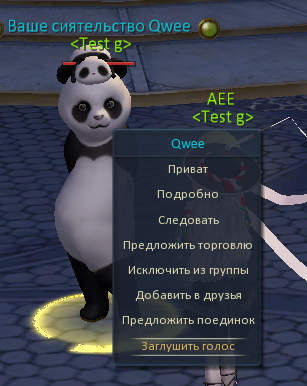
To make it easy to identify who is speaking, the voice system includes several types of visual indicators. When a character uses voice chat, a special indicator appears above their head. You can also mute a nearby character by right-clicking them and selecting the corresponding option.
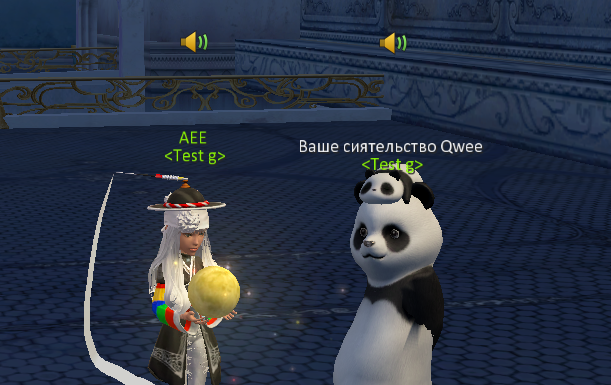
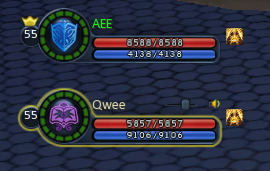
For group members, voice indicators also appear next to their standard HP/MP bars. You can adjust the volume of each member individually, making a particular player louder, quieter, or muting them completely using the mixer to the left of the speaker icon.
Dedicated HUD Panel
A compact HUD panel provides quick access to voice chat controls. From this panel, you can select the current voice channel, enable or disable your microphone, mute incoming voice audio, quickly open the settings, and access the voice activity log. The panel can be freely moved around the screen and positioned wherever it does not interfere with the main interface. A transparent HUD mode is also available.
Voice Activity Log
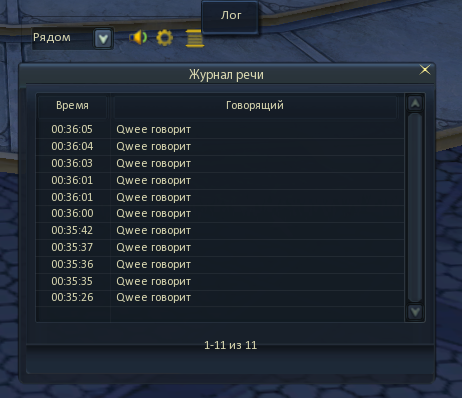
The voice system includes a log that displays recent voice activity. It can be opened using the "Log" button on the voice panel. Each entry shows the time, character name, and information about their use of a voice channel.
Voice Chat Settings
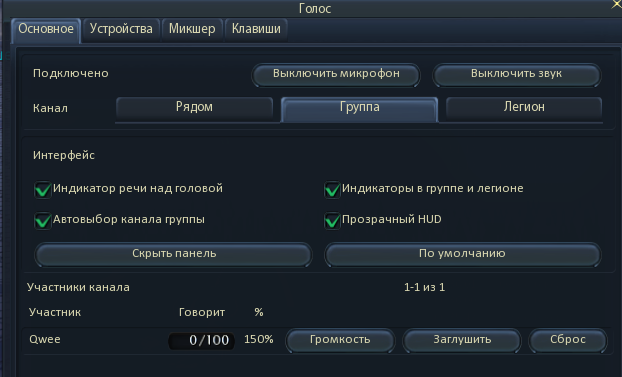
Despite being easy to use, the system offers a wide range of individual settings. You can customize almost every aspect of the voice system to suit your preferences. The main voice chat tab includes:
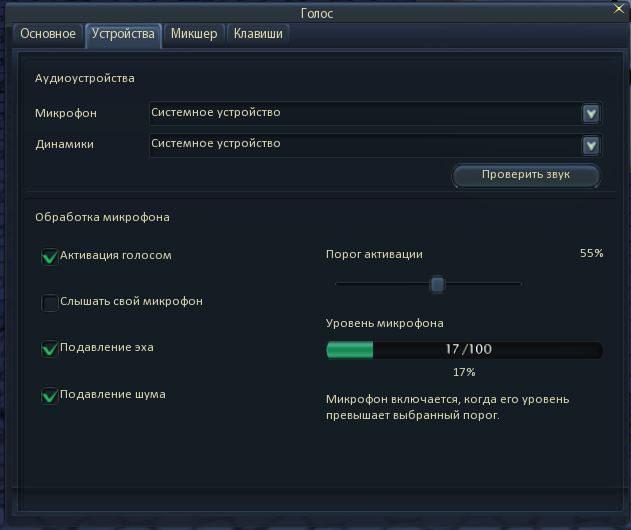
Devices and Microphone
The Devices tab allows you to select audio input and output devices, adjust microphone sensitivity, and test your microphone.
Individual Channel Volume
The "Mixer" tab lets you adjust playback quality, master volume, and the individual volume of each channel, or completely mute a selected channel.
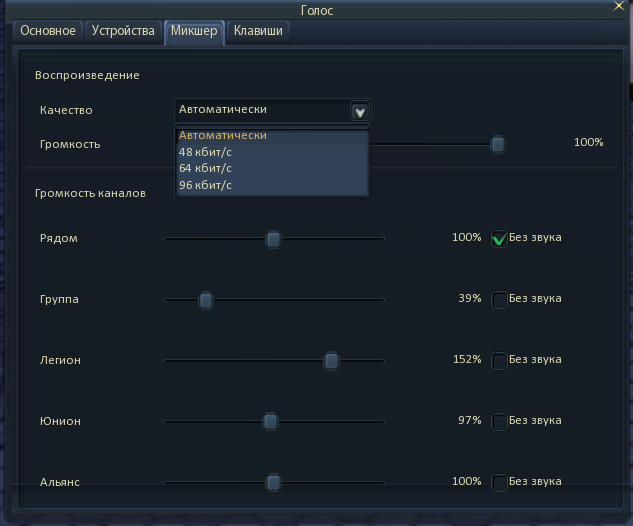
For example, you can make the group channel louder, lower the volume of the "Nearby" channel, and temporarily mute the legion channel.
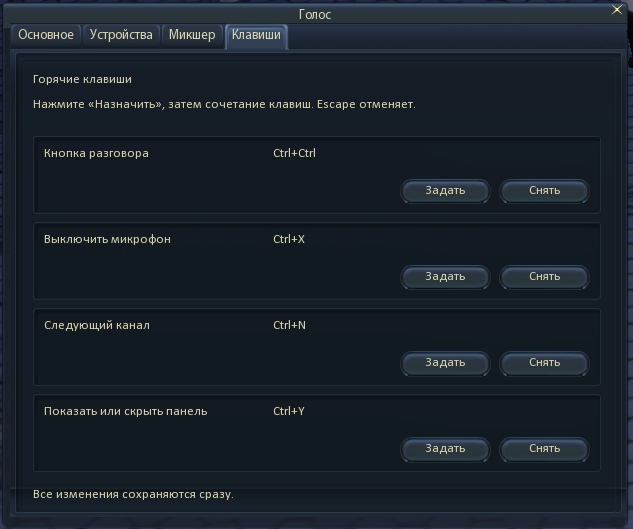
Hotkeys
You can assign custom hotkeys for voice chat controls. All changes take effect immediately — no client restart is required. Hotkeys can be cleared and reassigned at any time.
In-Game Camera Settings
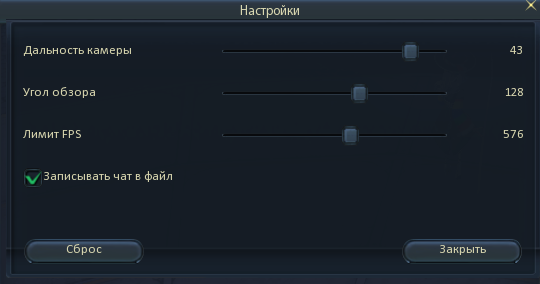
For convenience, we have moved the camera settings that were previously available in the launcher directly into the game client. You can now adjust the main display parameters while playing, without restarting the client.
Settings Presets
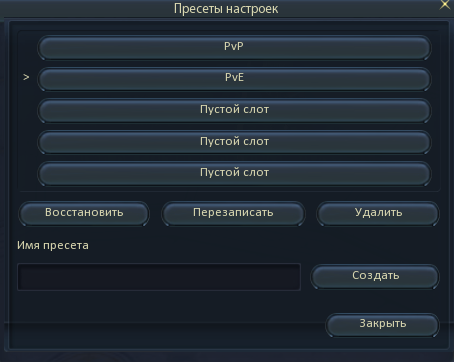
The preset system allows you to save the arrangement of skills on your action bars and quickly switch between previously prepared layouts. This is especially useful for players who use different stigma builds, PvP/PvE setups, or custom builds and otherwise have to rearrange their skills manually every time they switch setups.
Each preset can be given its own name to help distinguish between different setups. The window includes separate slots for saved configurations and the following actions:
Instead of constantly moving dozens of skills manually, you can prepare convenient action bar layouts in advance and restore them in just a few steps.
DPS Meter
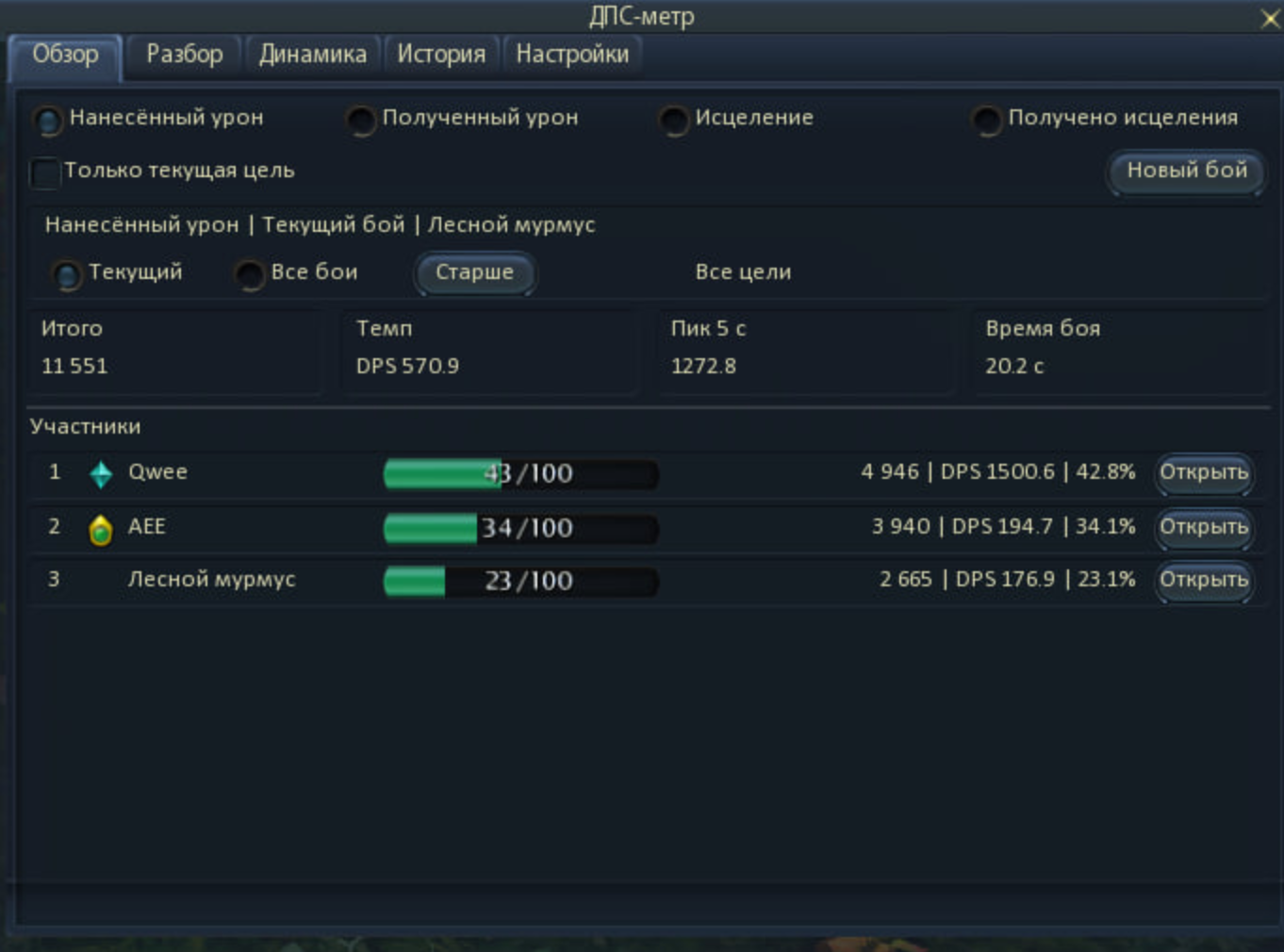
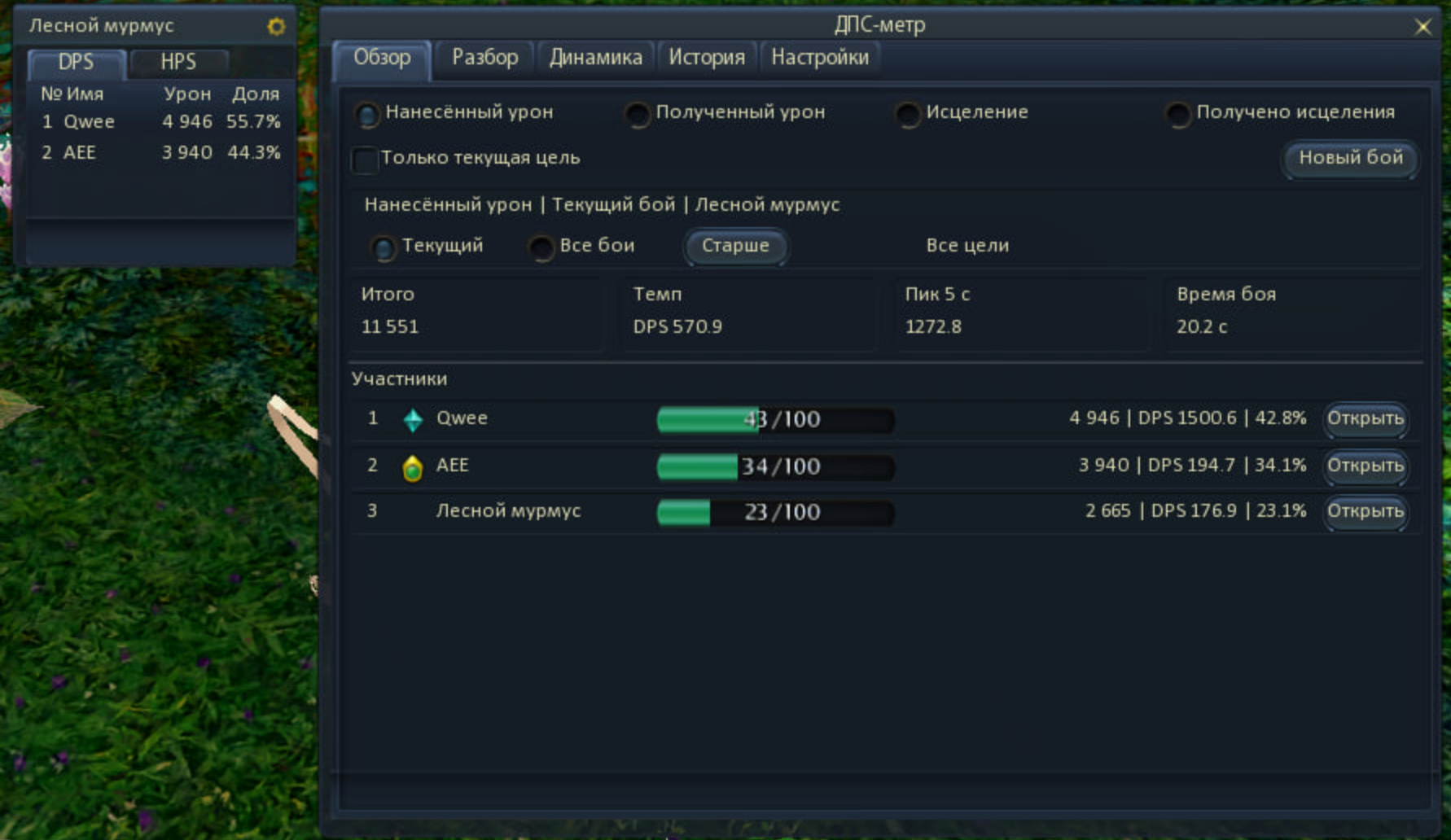
A built-in DPS Meter has been added to the client, allowing you to analyze combat directly in the game without third-party software. The system displays not only total damage dealt and DPS, but also allows you to switch between several types of statistics: damage dealt and received, healing done and received. Data can be tracked for your current target and for individual encounters.
Main Statistics
Detailed Breakdown
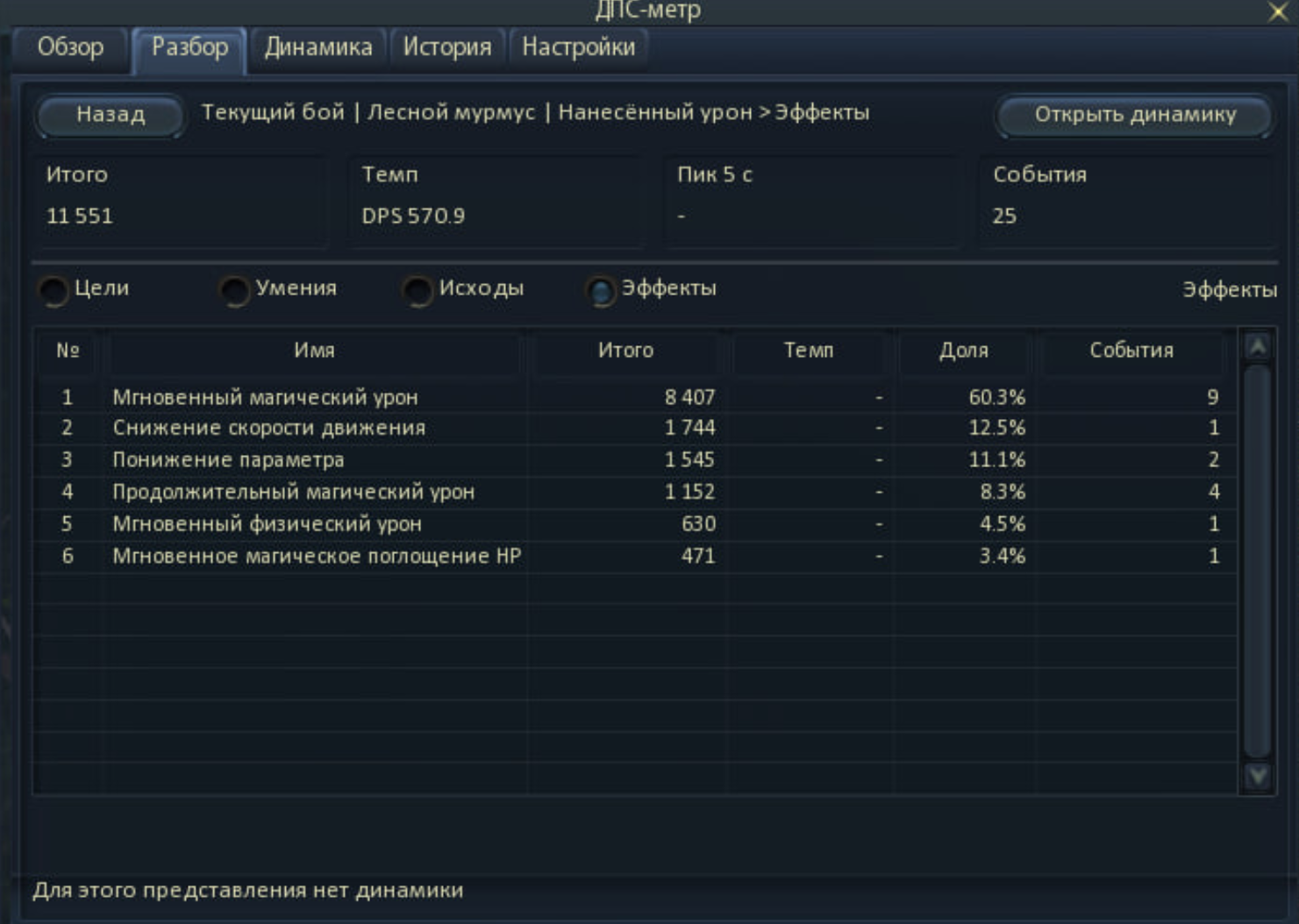
For more detailed analysis, a separate "Breakdown" section is available. For example, it displays normal and critical hits, parries, resists, and the number of corresponding events separately.
DPS Trends
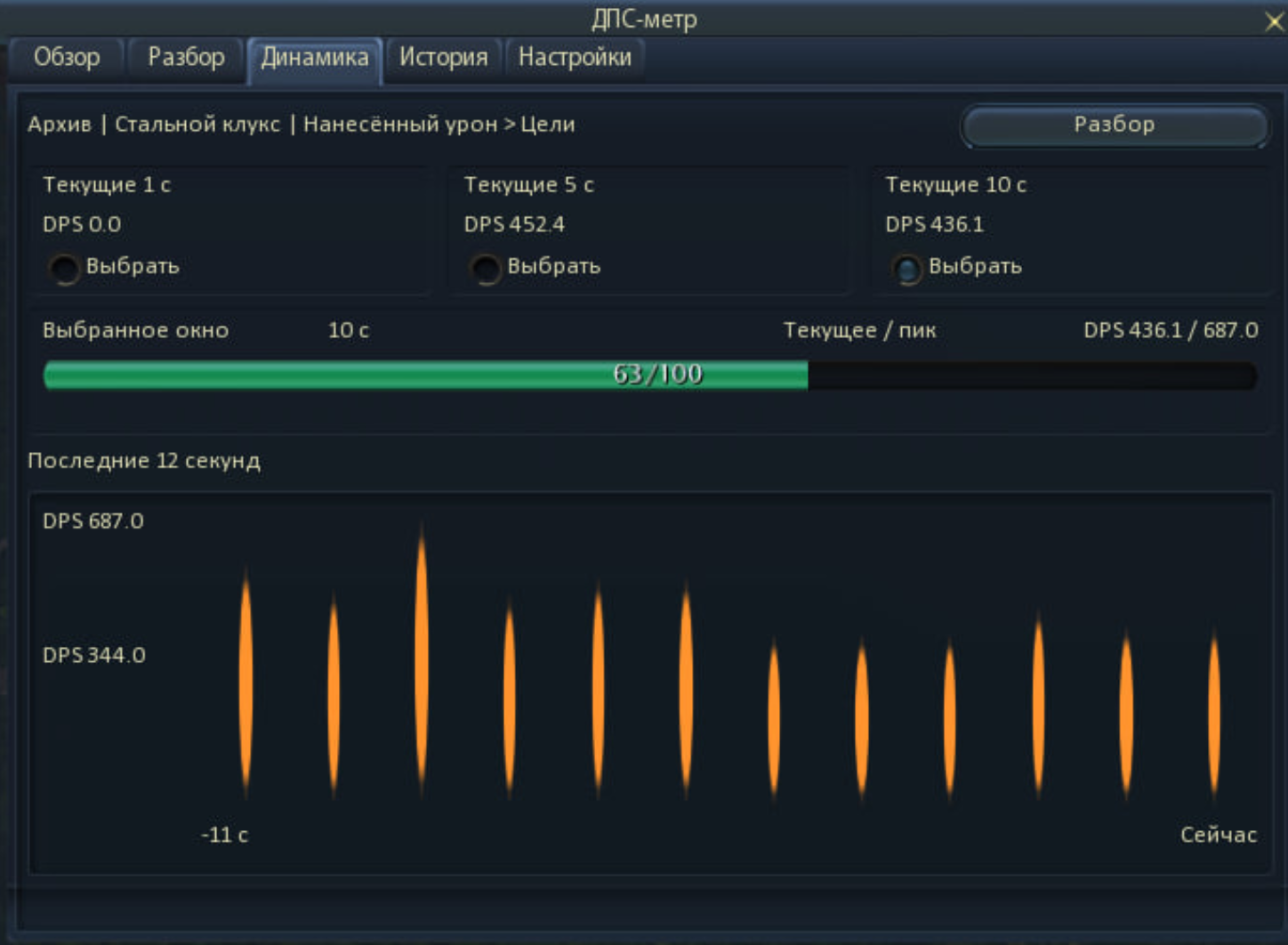
The "Trends" tab displays how DPS changes during combat. You can track values over 1-, 5-, and 10-second intervals, while the graph shows how performance changes over time.
Encounter History and Comparison
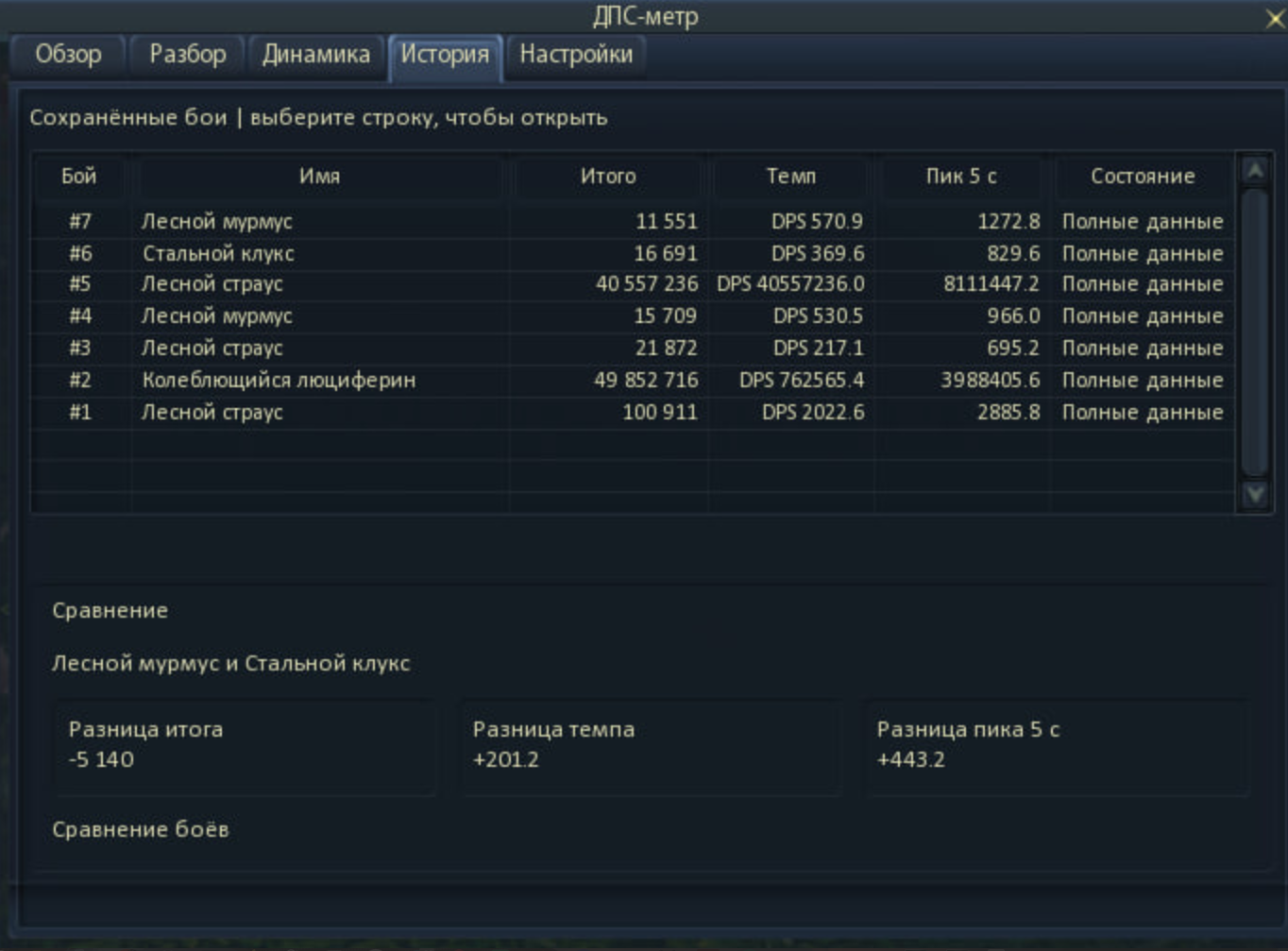
Completed encounters are saved in the history. Key statistics are displayed for each encounter, and multiple results can be compared, for example, by total damage, DPS rate, and peak DPS over 5 seconds.
Compact HUD and Group Statistics
The DPS Meter includes a compact HUD that can remain visible during gameplay. It displays participant rankings by DPS/HPS, total output, and contribution percentage. The information is also integrated into the standard group interface: current DPS and HPS values can be displayed below each group member's status bars.
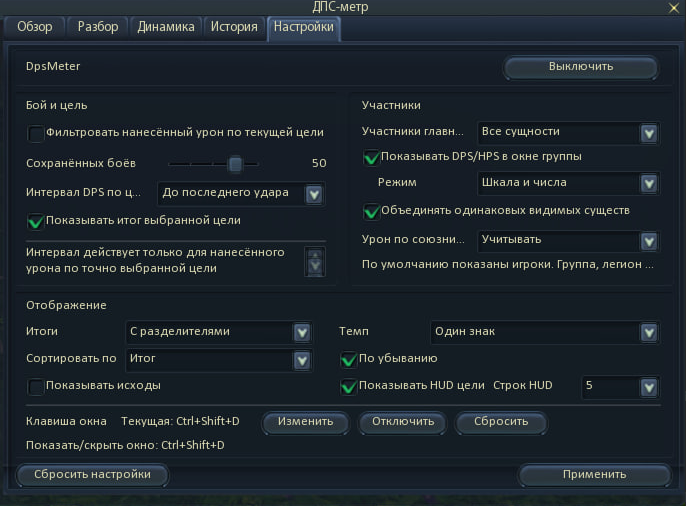
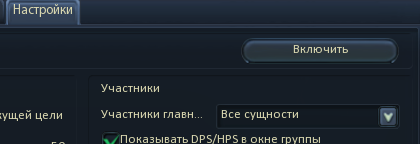
How to Enable the DPS Meter
We continue to develop the client, improve gameplay features, and test new systems. Your bug reports, screenshots, and videos will help us make these features more stable and convenient to use. Thank you for helping us improve Aion Empire!